


If you manage Access databases long enough, you will eventually experience that you open a mdb or accdb database file and Access either throws an error or shows a blank screen where your data used to be. It happens more than people expect for an application this mature, and usually at the worst possible time. In this article, we will discuss what actually causes it and try different free methods before spending any money on it. Lastly, explain how the third-party access database repair tools are helpful along-with comparison.
What Causes Access Database Corruption?
Improper shutdowns are probably the biggest one. Someone loses power, or force-closes Access while it’s mid-write, and the file is left half-updated.
Multi-user setups are the other big culprit — specifically, an unsplit database being edited by more than one person over a network share. Access wasn’t really built for that kind of concurrent write load, and it shows.
A few other things that show up regularly:
- Network drops while the file’s open over a mapped drive or VPN
- Bugs in older JET 4.0 or ACE engine builds, especially on large or heavily indexed files
- Files creeping up toward the 2GB size cap (they get unstable well before hitting it)
- Access or a VBA macro crashing mid-transaction
- Antivirus software scanning or locking .accdb files while they’re mid-write
Any one of these can leave you with an access database file that won’t open, or one that opens with tables, forms, or queries missing.
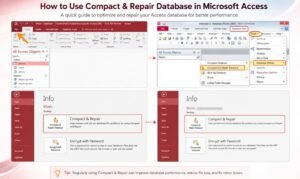
Method 1 – Use Compact and Repair to Repair Access Database
Before trying other methods to repair corrupt Access database, run Access’s built-in Compact and Repair Database tool. It rewrites the file, reclaims the space left by deleted objects, and rebuilds indexes. For minor corruption — mostly bloating and small index mismatches — this actually works more often than people give it credit for.
Where it stops being useful is anything involving damaged table definitions or corrupted system tables. If you’re seeing “Unrecognized database format” or error 9505, that’s not an indexing problem anymore — the file’s internal structure is damaged, and Compact and Repair just isn’t built to fix that.
Method 2 – Restore from Backup
Seriously, before touching repair software, check if there’s a backup of corrupt database. It is the fastest and safer than repairing a corrupted file from scratch.
A couple of things people miss here: if it’s a split database, you need the back-end file specifically, not the front-end. And Windows File History or Previous Versions sometimes has a copy even when nobody set up a formal backup routine.
Method 3 – Methods to Recover Lost Database
Before paying for anything, there are a couple of native tricks that don’t get mentioned much:
Creating a new blank database and importing objects one at a time (File → Get External Data → Import) sometimes recovers tables that Compact and Repair won’t touch, because import only works on the object you’re pulling — it doesn’t need the whole file to be structurally sound.
JetComp, Microsoft’s old standalone compaction tool, is worth a shot if Access won’t open the file at all.
And occasionally, a file that’s corrupted in one Access version will still open — or at least export — from a different installed version. Worth checking if you have access to more than one.
Method 4 – Use Access Database Repair Software
If none of the above gets you back into the file, or you’re getting missing objects and garbled data, it’s time for dedicated repair software. These tools read the raw binary structure of the .mdb/.accdb file directly rather than going through the JET/ACE engine — that’s the whole reason they can pull data out that Access itself can’t touch.
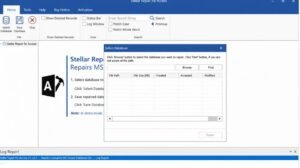
Stellar Repair for Access
This Access database repair software works directly on the file’s binary structure, which is what lets it get into files too corrupted for Compact and Repair to touch. It’s one of the few tools built specifically to handle split databases with linked tables and password-protected forms and modules — plus non-English language data. It also shows a preview of everything it can recover before you save. This Access database repair software supports Access 2002 and up through 2024/365. If you’re dealing with a split database with broken linked tables, or password-protected objects, this is the one built for that specific problem.
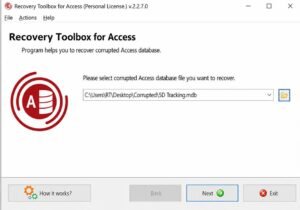
Recovery Toolbox for Access
Recovery Toolbox is a smaller, more focused tool — it’s been around a while and does one thing: preview and recover .mdb/.accdb data. Its own user reports lean heavily toward multi-user write-conflict corruption, which lines up with how common that failure mode is. It’s light on advanced features (no dedicated split-database or password-protected object handling), and the interface looks its age, but for straightforward corruption from concurrent edits on an unsplit database, it does the job.
AccessFIX
AccessFix Developed by Cimaware, tends to come up in the worst-case scenarios — testimonials specifically mention recovering databases where the table definitions themselves were gone, which is a failure mode Compact and Repair can’t touch at all. It costs more than most of the alternatives here and doesn’t get updated as often, but if you’ve tried everything else and the table definitions are the problem, it’s often the one that works.
Conclusion
Access database corruption is rarely a one-time accident but it’s usually a sign of a habit worth fixing, whether that’s an unsplit database sitting on a shared drive or backups nobody’s checked on in months. Splitting the database, watching file size, and running backups on a schedule will prevent most of what’s covered here. When corruption does happen, Compact and Repair and a proper backup should always be the first moves. If those don’t work, tools like Stellar Repair for Access or, for edge cases like missing table definitions, AccessFIX, can recover data that native options simply can’t reach.